OG Image Size: Open Graph Dimensions for Every Platform
The OG image size that works everywhere: 1200x630 at 1.91:1. Official Facebook, LinkedIn and X sizes, file limits, the meta tags and how to fix previews.
The short answer
The best OG image size is 1200 x 630 pixels, a 1.91:1 ratio, as a PNG or JPEG under 5 MB (ideally under 1 MB). It meets Facebook's and LinkedIn's recommendations and X's large card. X shows that card at 2:1, so keep text and logos away from the top and bottom edges.
Key takeaways
- Use 1200 x 630 at 1.91:1: Facebook recommends it and it clears LinkedIn's 1200 x 627 minimum.
- Stay under 5 MB, the limit on LinkedIn and X. Facebook allows 8 MB.
- X's large card is 2:1, so up to 30 px of height can be cropped: keep content in the middle.
- Set og:image:width, og:image:height and og:image:alt, and twitter:card to summary_large_image.
- A changed image needs a new URL, then a re-fetch in Facebook's Sharing Debugger or LinkedIn's Post Inspector.
The best OG image size is 1200 × 630 pixels, an aspect ratio of 1.91:1, saved as a PNG or JPEG well under 5 MB (aim for under 1 MB). That one image works as the link preview on Facebook, LinkedIn and X. Keep your headline and logo away from the top and bottom edges, because X's large card is 2:1 and can trim a little height off.
Everything else is detail: each platform's own minimum and maximum, the meta tags that go with the image, why a preview shows the wrong picture, and how to make a platform fetch the new one. This page covers all of it, with numbers taken from each platform's own documentation (checked 28 October 2026) and examples from a made-up help desk product called Acme.
OG image size by platform
| Platform | Recommended | Minimum | Max file size | Aspect ratio | Source |
|---|---|---|---|---|---|
| 1200 × 630 | 600 × 315 for the large preview, 200 × 200 at all | 8 MB | 1.91:1 | Meta for Developers | |
| 1200 × 627 or larger | 1200 × 627 | 5 MB | 1.91:1 | LinkedIn Help | |
| X (summary_large_image card) | 2:1, e.g. 1200 × 600 | 300 × 157 | 5 MB | 2:1 | X developer docs (archived January 2026) |
A few things in that table matter more than they look:
- 1200 × 630 clears every minimum. It's the size Facebook asks for on high-resolution screens, it's at least LinkedIn's 1200 × 627, and it's far above X's 300 × 157.
- 5 MB is the real ceiling. Facebook takes 8 MB, but LinkedIn and X stop at 5 MB. A 1200 × 630 image is rarely more than a few hundred kilobytes anyway, and a smaller file is fetched faster the first time someone shares the link.
- Below 600 × 315, Facebook shows a much smaller preview. It still shows something down to 200 × 200, but you lose the big card that makes people click.
- X allows up to 4096 × 4096 and takes JPG, PNG, WEBP and GIF. Only the first frame of a GIF is shown, and SVG isn't supported.
LinkedIn's minimum is 1200 × 627, not 1200 × 630, because 1200 ÷ 1.91 is 628. Both sizes are 1.91:1 within a rounding error, and both work on LinkedIn.
Why 1200 × 630 and not 1200 × 600
There are two ratios in play. Facebook and LinkedIn both recommend 1.91:1, and keeping close to it means the whole image shows in the feed without cropping. X's large card is 2:1.
You can't match both exactly with one image, so pick 1.91:1 and design for the difference:
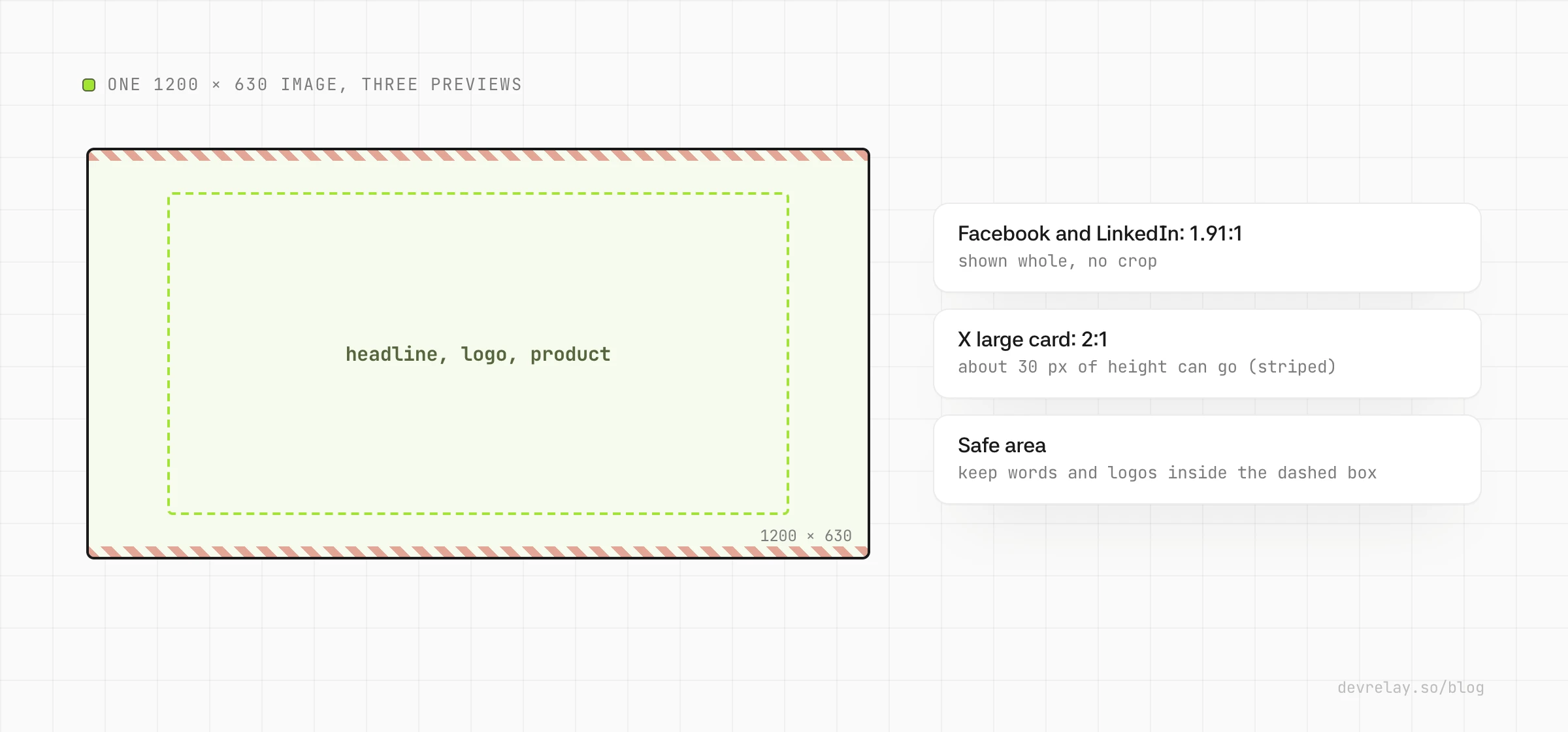
The arithmetic: at 1200 pixels wide, a 2:1 image is 600 pixels tall. A 1200 × 630 image is 30 pixels taller than that, so a 2:1 crop removes 30 pixels of height, 15 from the top and 15 from the bottom if it's centred. That's under 5% of the image. Nothing important should sit there anyway.
A practical safe area: keep text, logos and faces at least 60 pixels from the left and right edges and 60 pixels from the top and bottom. That leaves a 1080 × 510 box in the middle that survives every crop, plus a little room for the rounded corners every platform draws.
The meta tags
The image only shows if the page tells crawlers about it. The Open Graph protocol defines the tags, and X reads them too:
<meta property="og:image" content="https://acme.com/og/send-later.png" />
<meta property="og:image:type" content="image/png" />
<meta property="og:image:width" content="1200" />
<meta property="og:image:height" content="630" />
<meta property="og:image:alt" content="Acme ticket composer with the Send later menu open, set to Monday 9:00" />
<meta name="twitter:card" content="summary_large_image" />
What each one does:
og:imageis the image's URL. Use an absolutehttps://URL, not a relative path like/og/send-later.png, since a crawler reading your page has nothing to resolve it against.og:image:widthandog:image:heightgive the size in pixels. Facebook says these let its crawler render the image immediately instead of downloading and processing it first, which matters for the very first share of a new link.og:image:typeis the MIME type, such asimage/pngorimage/jpeg.og:image:altdescribes what's in the image (the spec says "not a caption"). If a page setsog:image, the spec says it should set this too. X uses it as the alt text when there's notwitter:image:alt, which can be up to 420 characters.twitter:cardset tosummary_large_imageasks X for the large card. Without it, X can fall back to a small square thumbnail. X readsog:imagewhen there's notwitter:image, so you don't need to repeat the image URL.
og:image:secure_url also exists, for an HTTPS address of the image. If your og:image is already https://, you don't need it.
In Next.js
With the App Router, set the image in your page's metadata and Next.js writes the tags above:
export const metadata = {
  openGraph: {
    images: [
      {
        url: "https://acme.com/og/send-later.png",
        width: 1200,
        height: 630,
        alt: "Acme ticket composer with the Send later menu open, set to Monday 9:00",
      },
    ],
  },
  twitter: { card: "summary_large_image" },
};
Or drop a file named opengraph-image.png into the route's folder, with an opengraph-image.alt.txt beside it, and Next.js adds the tags and the size for you. If you generate images with ImageResponse from next/og, export size = { width: 1200, height: 630 } from the same file.
File format and size
- PNG for screenshots, text and flat colours: sharp edges, no blur around letters.
- JPEG for photos: much smaller at the same visual quality.
- WEBP is accepted by X; check the other platforms you care about before relying on it. PNG and JPEG work everywhere.
- Not SVG. X doesn't support it, and most link-preview crawlers expect a raster image.
- Under 1 MB is a good target. The hard limits are 5 MB on LinkedIn and X and 8 MB on Facebook.
One more server detail from Facebook's docs: its crawler accepts only gzip and deflate encodings, so if your server only answers with another compression, the image may not load for it.
What goes on the image
The size is the easy part. A link preview is a small, busy rectangle in a feed, so:
- One message. The feature's name or the one thing it lets people do, in large type. Six words or fewer reads at a glance.
- Big enough to read on a phone. In a feed, your 1200-pixel-wide image is shown a few hundred pixels wide. Text under about 40 pixels tall in the original gets hard to read.
- Not just your logo. X's docs specifically say not to use a generic site logo as the card image. Show the product, the feature, or the outcome.
- The same headline as the post, or a better one. The image and the post text are read together; don't make them argue.
- High contrast. Feeds are shown in light and dark mode. Test the image on both.
For a launch, Acme's image for Send later might be the ticket composer with the Send later menu open, and one line: "Reply now, deliver Monday at 9." The launch post carries the detail; the image just needs to stop the scroll.
Common problems
No image shows at all. Check that og:image is an absolute URL, that it returns the image (not a redirect to a login page or an HTML error), and that the file is within the platform's size limit. A crawler can't fetch an image behind authentication or one your robots.txt blocks.
The old image still shows. Platforms cache the preview. Facebook caches images by URL and doesn't update the preview on posts that were already shared. To change it, publish the new image at a new URL (send-later-v2.png, or send-later.png?v=2), update og:image, then ask the platform to fetch the page again.
The image is cropped. It isn't close to 1.91:1, or it's on X, where the card is 2:1. Use 1200 × 630 and keep important content inside the safe area.
The image is blurry. It's smaller than the platform's minimum and has been scaled up. Below 600 × 315, Facebook shows the small preview instead.
The first share has no image. Facebook says its crawler has to see an image once before it can show it, so the very first person to share a new link may get a preview without one. Set og:image:width and og:image:height, or fetch the URL in Facebook's Sharing Debugger before you post.
How to refresh a preview
- Facebook: paste the URL into the Sharing Debugger and scrape it again.
- LinkedIn: paste the URL into the Post Inspector, which fetches the page again and shows what LinkedIn will use.
- X: paste the link into a new post and look at the card in the composer before you post.
Before any of them, check your own tags: the free Open Graph checker fetches a page, shows the X, LinkedIn and Slack previews, and flags an image smaller than 600 × 315, a ratio that will be cropped, a file over 1 MB or 5 MB, an SVG and a missing og:image:alt.
Checklist
- 1200 × 630 PNG or JPEG, under 1 MB
- Headline, logo and product inside the middle 1080 × 510
- Text readable when the image is shown a few hundred pixels wide
og:imageis an absolutehttps://URL that returns the imageog:image:width,og:image:height,og:image:typeandog:image:altsettwitter:cardset tosummary_large_image- Checked in the Sharing Debugger, Post Inspector or an Open Graph checker before posting
- A new image gets a new URL
How DevRelay makes launch images
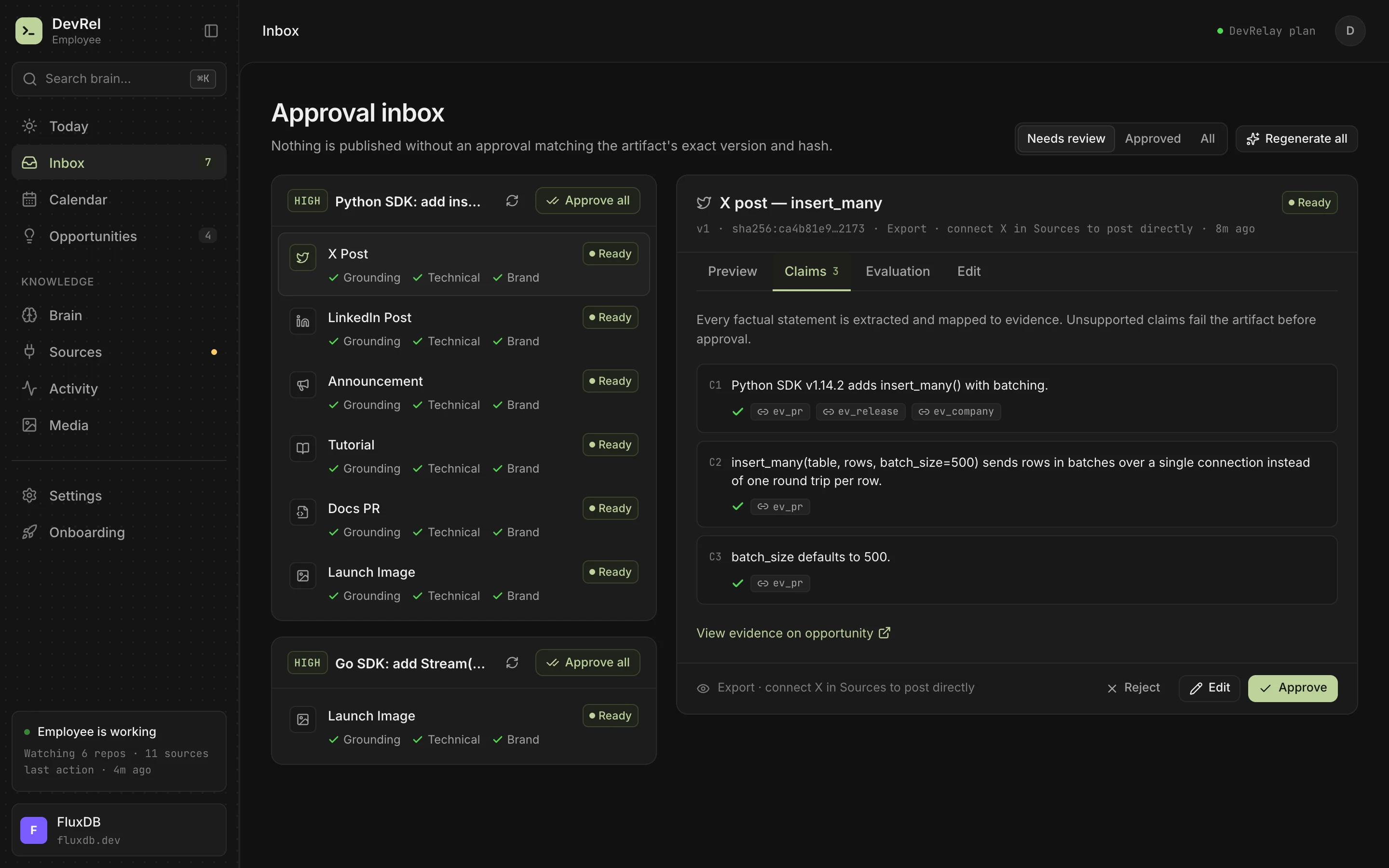
DevRelay watches your GitHub repositories and drafts the posts for a release: X and LinkedIn posts, a changelog entry and an announcement, written for your product's users. For a launch it also writes a launch image brief: the headline, the labels and the layout, in your brand's colours and with your logo, checked against the release like everything else.
On the DevRelay plan, the brief is rendered into an image. Once you approve it, it goes out with the X and LinkedIn posts it belongs to, so the link preview and the post tell the same story. Nothing is posted until you approve it, and an approved image is never re-rendered.
For the text that goes with the image, see the LinkedIn post format guide and how to announce a release on X.
Frequently asked questions
What size should an OG image be?
1200 x 630 pixels, a 1.91:1 aspect ratio. Facebook recommends it for high-resolution screens, it meets LinkedIn's 1200 x 627 minimum, and it's well above the 300 x 157 minimum for X's large card.
What is the OG image size for LinkedIn?
LinkedIn's help center gives a minimum of 1200 x 627 pixels, a 1.91:1 ratio and a 5 MB maximum file size. A 1200 x 630 image meets all three.
What is the Twitter card image size?
The summary_large_image card on X uses a 2:1 ratio, from 300 x 157 up to 4096 x 4096 pixels, under 5 MB, as JPG, PNG, WEBP or GIF (first frame only). SVG isn't supported. A 1200 x 630 image works if its edges hold nothing important.
What is the maximum OG image file size?
Facebook accepts up to 8 MB, LinkedIn and X up to 5 MB. Keep it under 1 MB so it loads quickly the first time a link is shared.
Why does LinkedIn or Facebook still show my old OG image?
They cache the preview. Publish the new image at a new URL, update og:image, then re-fetch the page in LinkedIn's Post Inspector or Facebook's Sharing Debugger. Posts shared before the change keep the old preview.
Do I need og:image:width and og:image:height?
They're optional but worth setting. Facebook says they let its crawler render the image right away instead of downloading it first, so even the first share of a new link shows the image.